

Change your password
You need your current password to make this change.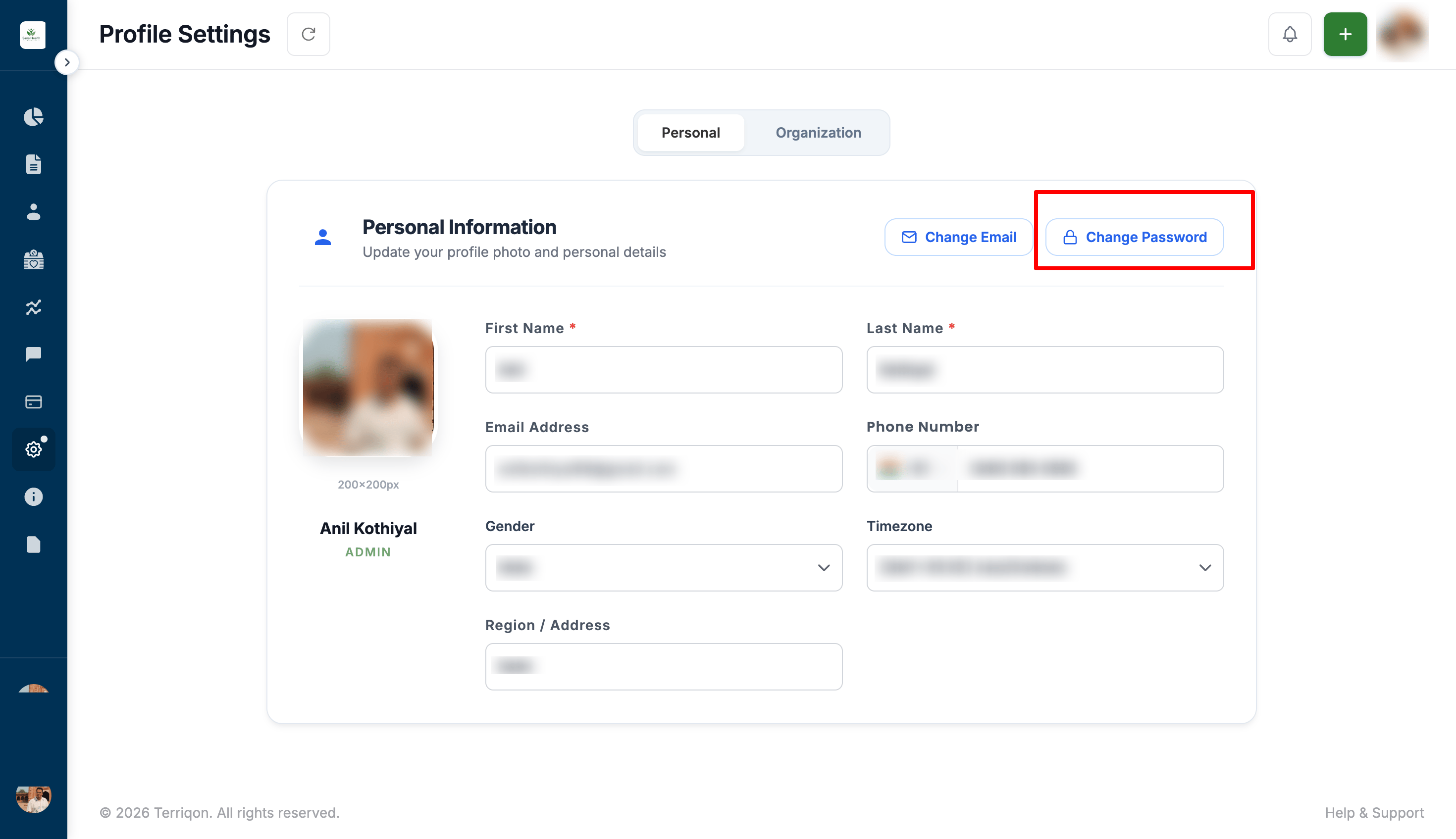
1
Open your profile
Select your profile picture in the upper-right corner. Terriqon opens your profile page.
2
Select Change Password
On the right side of the profile page, select Change Password.
3
Enter your passwords
Enter your current password, then enter the new password you want to use.
4
Update your password
Save the change to update your password.
5
Sign in again
After your password is changed, Terriqon signs you out. Sign in again with your registered email address and new password.
Change your registered email address
You need your current password and access to the new email inbox. Your password remains the same after you change your email address.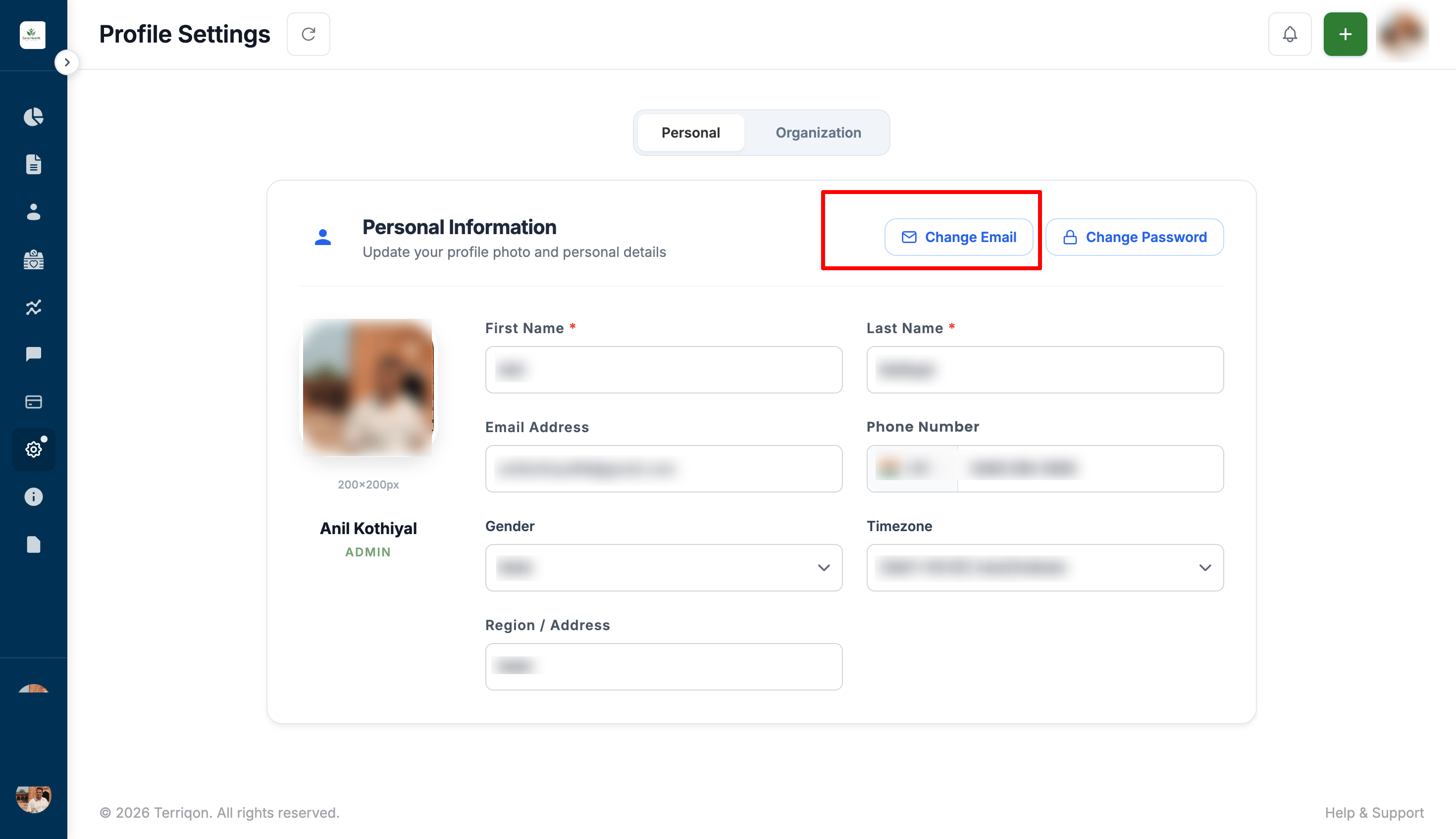
1
Open your profile
Select your profile picture in the upper-right corner. Terriqon opens your profile page.
2
Select Change Email
On the right side of the profile page, select Change Email.
3
Enter your account details
Enter your current password and the new email address you want to register.
4
Send the verification code
Select Send OTP. Terriqon sends a one-time password (OTP) to the new email address.
5
Verify the new email address
Open the message in your new email inbox, copy the OTP, and paste it into the OTP field in Terriqon. Submit the code to verify the address.
6
Sign in with your new email address
After the OTP is verified, Terriqon updates your registered email address and redirects you to the sign-in page. Sign in with your new email address and existing password.
Reset a forgotten password
Use this procedure when you cannot sign in because you have forgotten your password.
1
Open the sign-in page
Go to the Terriqon sign-in page.
2
Select Forgot password?
Select Forgot password? below the sign-in form.
3
Enter your registered email address
Enter the email address registered to your Terriqon account and submit the request. Terriqon sends a password-reset link to that address.
4
Open the reset link
Open the password-reset message in your email inbox and select the link in the message.
5
Create a new password
Enter the new password you want to use, then save the change.
6
Sign in with your new password
Return to the Terriqon sign-in page and sign in with your registered email address and new password.